
Install, Sideload & Setup FrameTune.
Follow our illustrated, step-by-step instructions for Amazon Fire TV Stick, Google TV, Android TV boxes, and your Android phone. Everything you need to get silent ad muting, auto-skipping, and companion remote control running in minutes.
Download via Downloader App (Code: 8063940)
The quickest wireless method for Amazon Fire TV Stick, Google TV, and Android TV hardware.
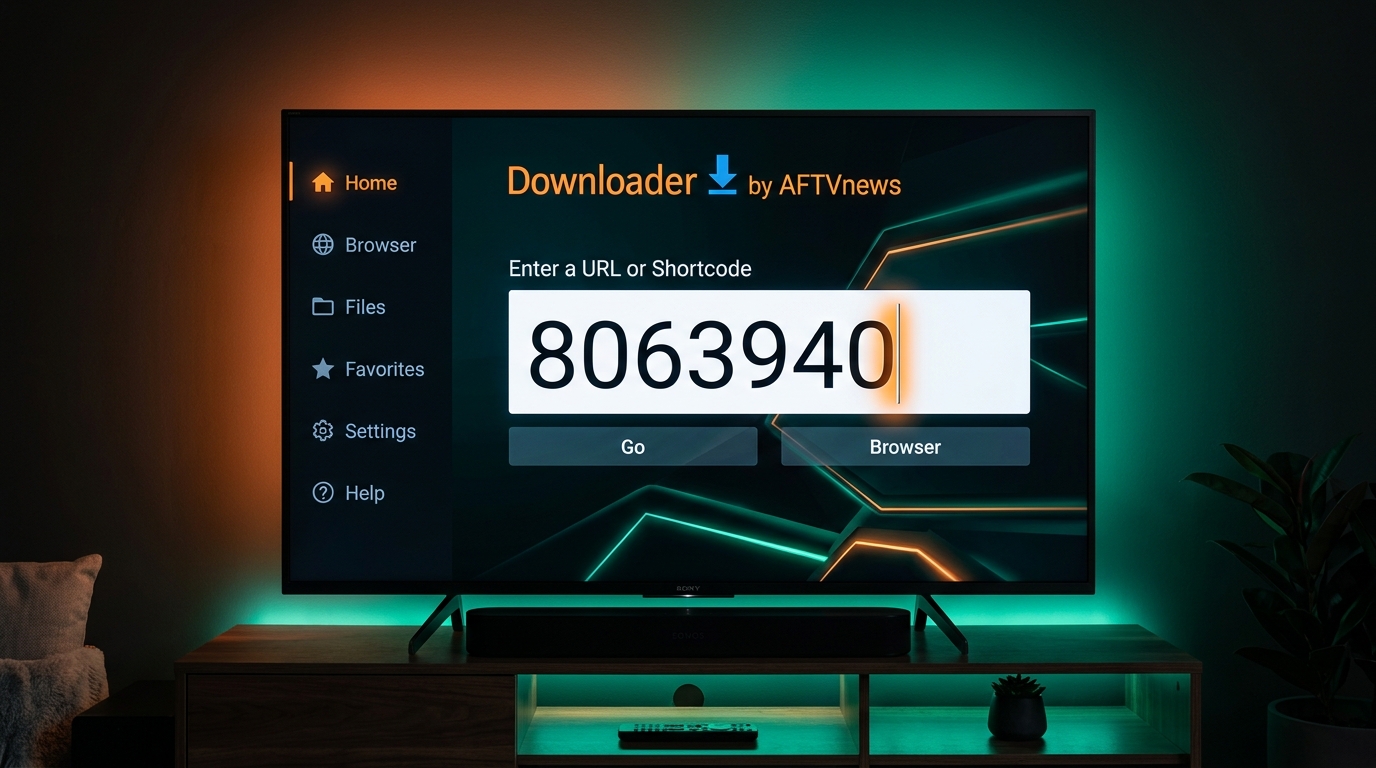
Downloader automatically queries aftv.news/8063940 and initiates the secure direct APK download.
Open Downloader App on TV
Search for "Downloader by AFTVnews" in the Amazon Appstore or Google Play Store on your TV and install it for free.
Type Code 8063940 & Hit "Go"
Select the URL input box on the Home tab of Downloader. Using the on-screen TV keypad, enter numeric code 8063940 and press Go.
Automatic Countdown & Download
The AFTVnews redirect service will count down 5 seconds and automatically begin downloading FrameTune-TV.apk (~7.05 MB).
Click "Install" & Launch
Once downloaded, Downloader will display the Android Package Installer prompt. Click Install, then select Open to launch FrameTune TV!
frametune.fyi/tv.html directly into Downloader's browser tab.
How to Sideload on TV (With Pictures)
Because FrameTune is a dedicated standalone companion app, modern smart TVs require enabling Developer Options and granting Install Unknown Apps permission to allow the installation.
Unlock Developer Options (The 7-Click Method)
Amazon hides the Developer Options menu on newer Fire OS versions (Fire TV Stick 4K, 4K Max, Lite, and Fire TV Cube).
- Navigate to TV Settings → My Fire TV → About.
- Highlight the first option: Fire TV Stick (or your specific model name).
- Press the remote's center Select button 7 times rapidly.
- A popup notification at the bottom will confirm: "No need, you are already a developer."
Enable 'Install Unknown Apps' for Downloader
Once Developer Options is unlocked, give Downloader permission to install the APK:
- Press the Back button and go to My Fire TV → Developer Options.
- Select Install unknown apps.
- Find Downloader in the list and toggle it to ON.
- (Optional) If you also see ADB Debugging, turn it ON.
Enter Code & Complete Installation
Return to the Downloader app, enter code 8063940, and click Install when the download finishes. FrameTune TV is now installed on your Fire TV!
Enable Developer Options on Google TV
Works on Sony Bravia, TCL, Philips, Xiaomi Mi Box, Nvidia Shield TV, and Chromecast with Google TV:
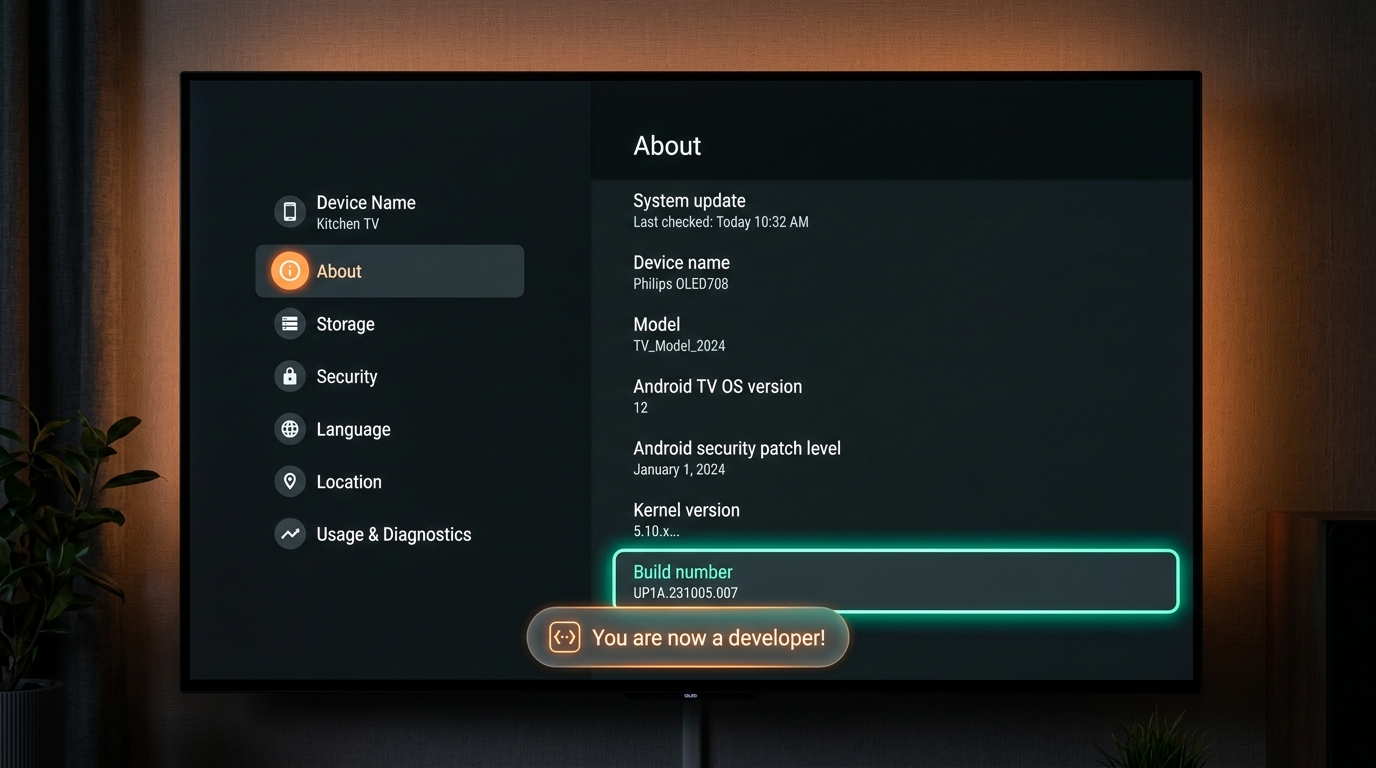
- Open TV Settings (gear icon) → System → About.
- Scroll down to Android TV OS build (or Build number).
- Click the center Select button 7 times continuously.
- You will see a toast notification: "You are now a developer!".
Allow Unknown Apps in Apps > Security
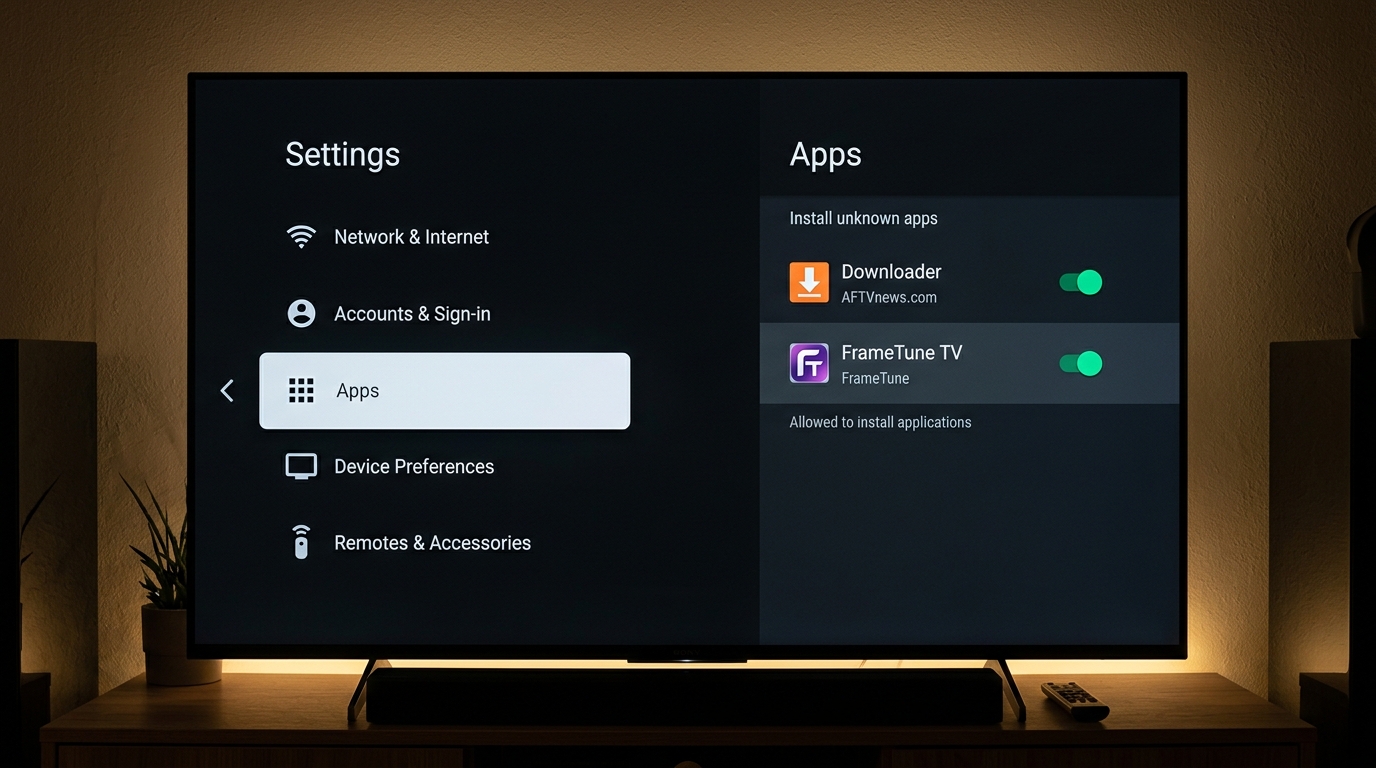
- Go to Settings → Apps → Security & restrictions (or Special app access).
- Select Install unknown apps.
- Toggle Downloader or your file manager (e.g. File Commander) to ON / Allowed.
Download & Install the APK
In Downloader, type code 8063940. Click Install when prompted. When installed, click Open to launch!
How to Sideload Remote App on Mobile
Install FrameTune Remote on any Android 9.0+ smartphone to control your TV with physical haptics, instant trackpad navigation, and direct OTT volume control.
Download FrameTune-Remote.apk
On your Android phone, tap the download button below or get the APK from our GitHub release.
Download FrameTune-Remote.apk (v1.1.53)Tap "Download anyway" on Browser Prompt
Google Chrome will display: "File might be harmful. Do you want to download FrameTune-Remote.apk anyway?" Tap Download anyway.
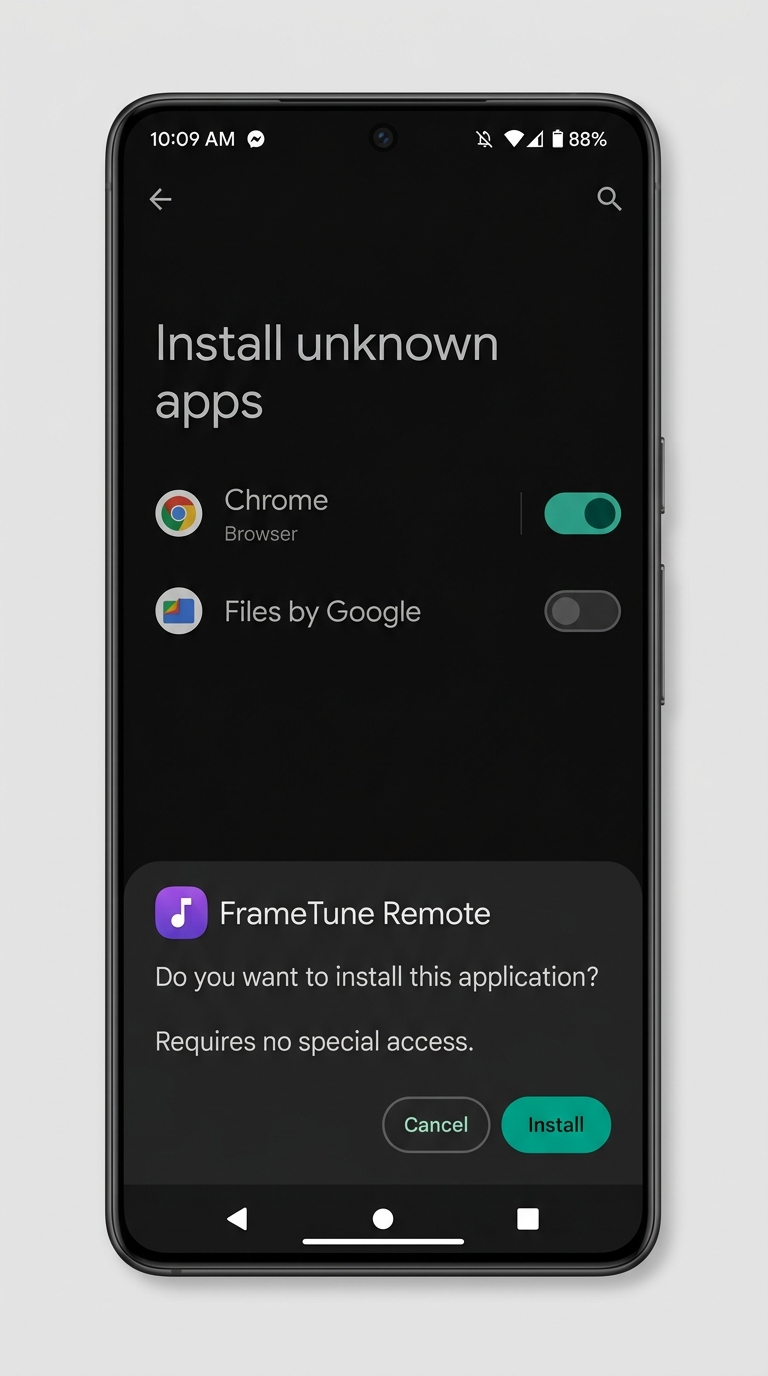
Allow "Install Unknown Apps" for Chrome
When you tap the downloaded file, your phone may show: "For your security, your phone is not allowed to install unknown apps from this source."
- Tap Settings on the prompt.
- Toggle "Allow from this source" to ON.
- Tap Back and select Install.
Open App & Pair with Your TV
Method A (Bluetooth HID - No Wi-Fi Needed): Pair phone to TV in Bluetooth settings. Works immediately as a hardware keyboard/remote.
Method B (Local Wi-Fi): Connect to the same Wi-Fi, open FrameTune Remote, enter your TV IP address and the 4-digit pairing code shown on your TV screen!
How to Download from GitHub Release Page
Grab the official cryptographic signed APK files directly from our official GitHub releases repository.
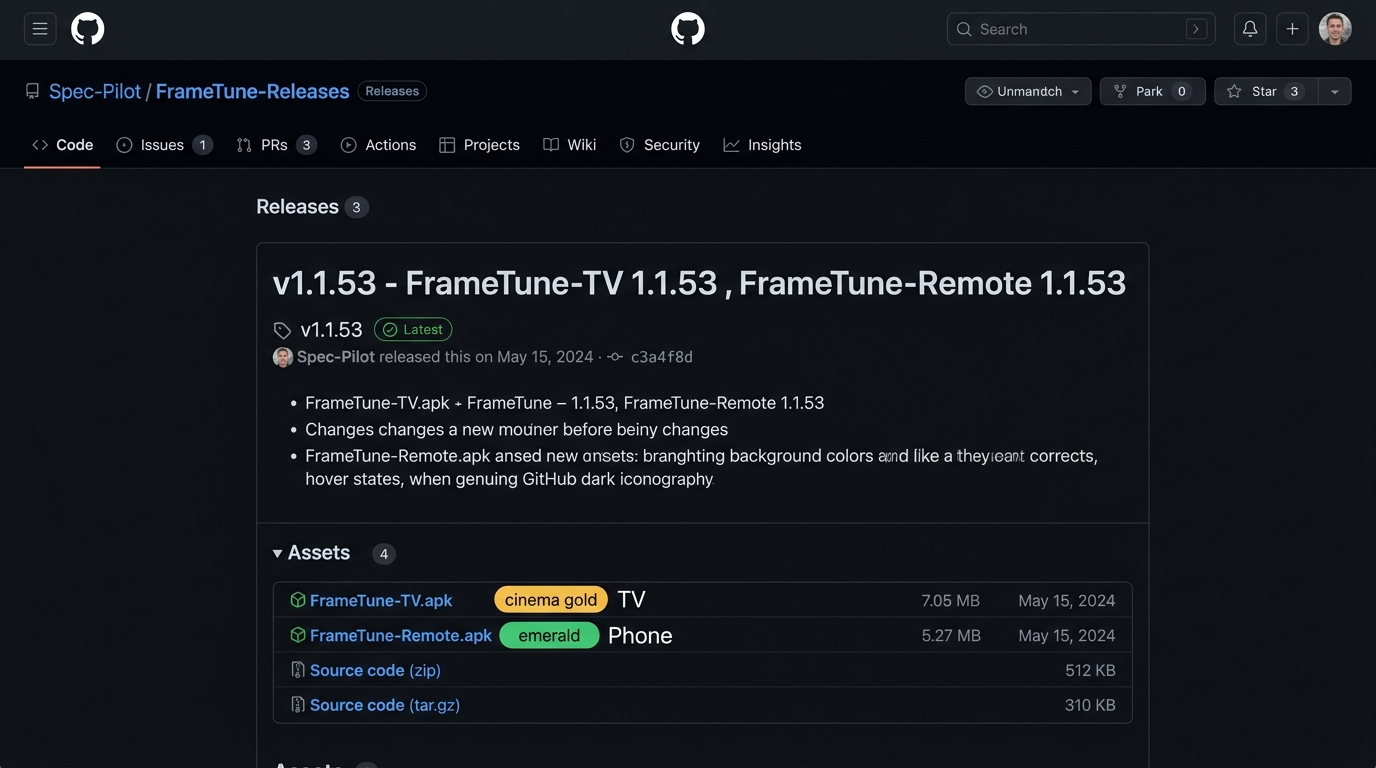
Find the "Latest" Release Tag
On github.com/Spec-Pilot/FrameTune-Releases, locate the release with the green Latest badge (e.g. v1.1.53).
Expand the "Assets" Section
Scroll to the bottom of the release notes. Click the small arrow next to Assets (4) to expand the list of build artifacts.
Choose the Correct APK for Your Device
Transferring from PC to TV
USB Flash Drive: Copy the APK to a FAT32 USB drive and plug into TV.
Send Files to TV App: Install on PC/Phone and TV to send wirelessly.
ADB Command: Run adb install -r FrameTune-TV.apk.
TV Accessibility & Auto-Update Permissions
Two crucial system settings make FrameTune TV work silently in the background and ensure effortless in-app updates.
Setup Accessibility Permission
Why this is needed: FrameTune TV operates 100% rootless. The Android Accessibility Service allows FrameTune to detect video player state changes in supported OTT apps (Netflix, Prime Video, JioHotstar, Zee5), mute TV volume before commercial ads begin, and auto-click "Skip Intro". Zero video data ever leaves your TV.
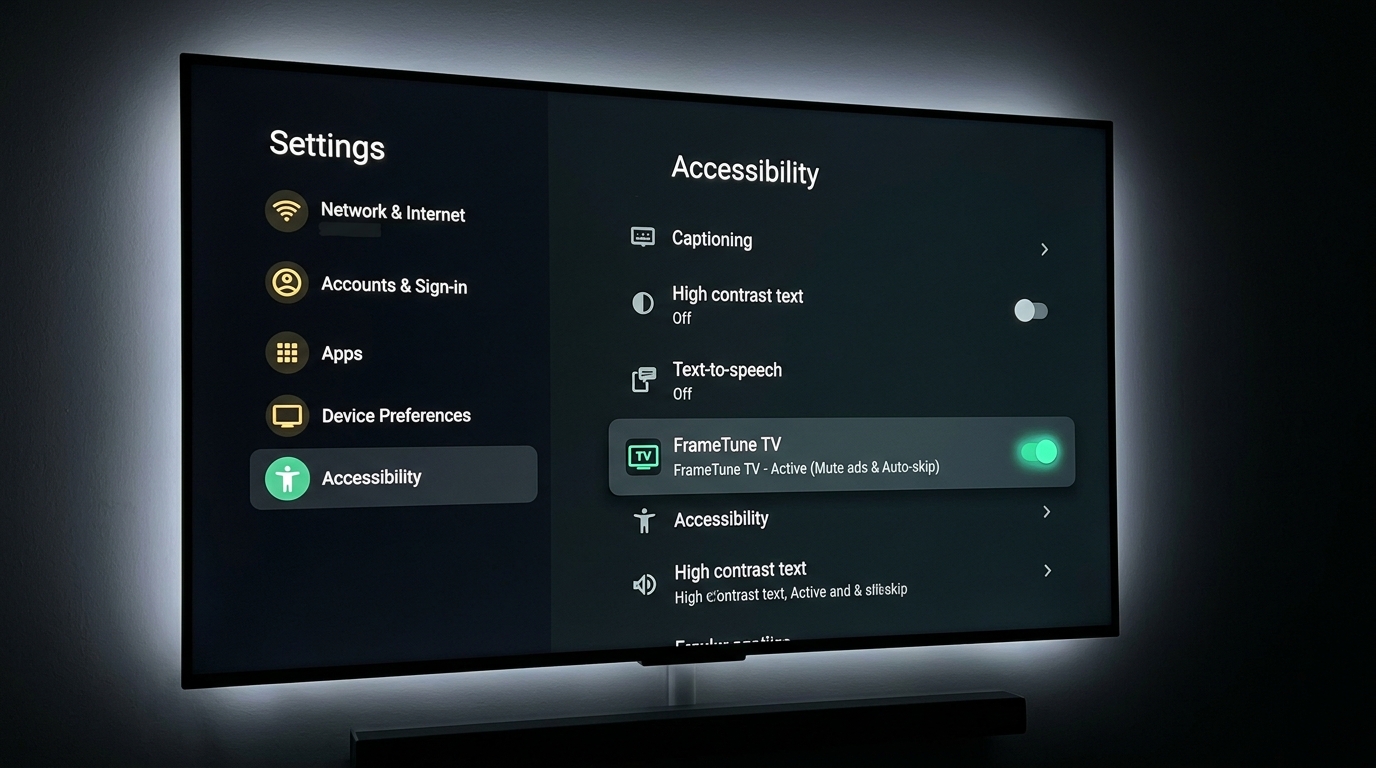
Allow "Install Unknown Apps" for Updates
Why this is needed: FrameTune TV includes a built-in silent updater. When a new version is released on GitHub, FrameTune TV downloads the update APK and prompts you to install it with 1 click. For Android to let FrameTune TV trigger its own update package, this permission must be enabled.
Frequently Asked Setup Questions
Quick solutions to common smart TV sideloading hurdles.
I don't see "Developer Options" in My Fire TV settings? ▼
Downloader displays "An error occurred while installing the package"? ▼
FrameTune-TV.apk, and click Install.
Does FrameTune TV require Root or void my TV warranty? ▼
Can I install FrameTune TV on Samsung (Tizen) or LG (webOS)? ▼
How do I pair the Remote if my Phone and TV are on separate Wi-Fi bands? ▼
Ready to Experience Distraction-Free Streaming?
Download FrameTune Suite v1.1.53 today and take back control of your television.